
Accounts
On this page
- Account Types
- Account Type Details
- Creating an Account
- Required Fields
- Optional Fields
- Loan and Mortgage Setup
- Loan Payment Setup
- Mortgage Setup
- Mortgage Fees
- Payment Matching
- Guided Payment Setup
- Overpayment Recognition
- Interest Booking Mode
- Financial Institutions
- Why Set an Institution
- Setting or Changing an Institution
- Account List
- Summary Card
- Filtering
- Account Detail Pages
- Banking (Chequing / Savings / Cash)
- Credit Cards
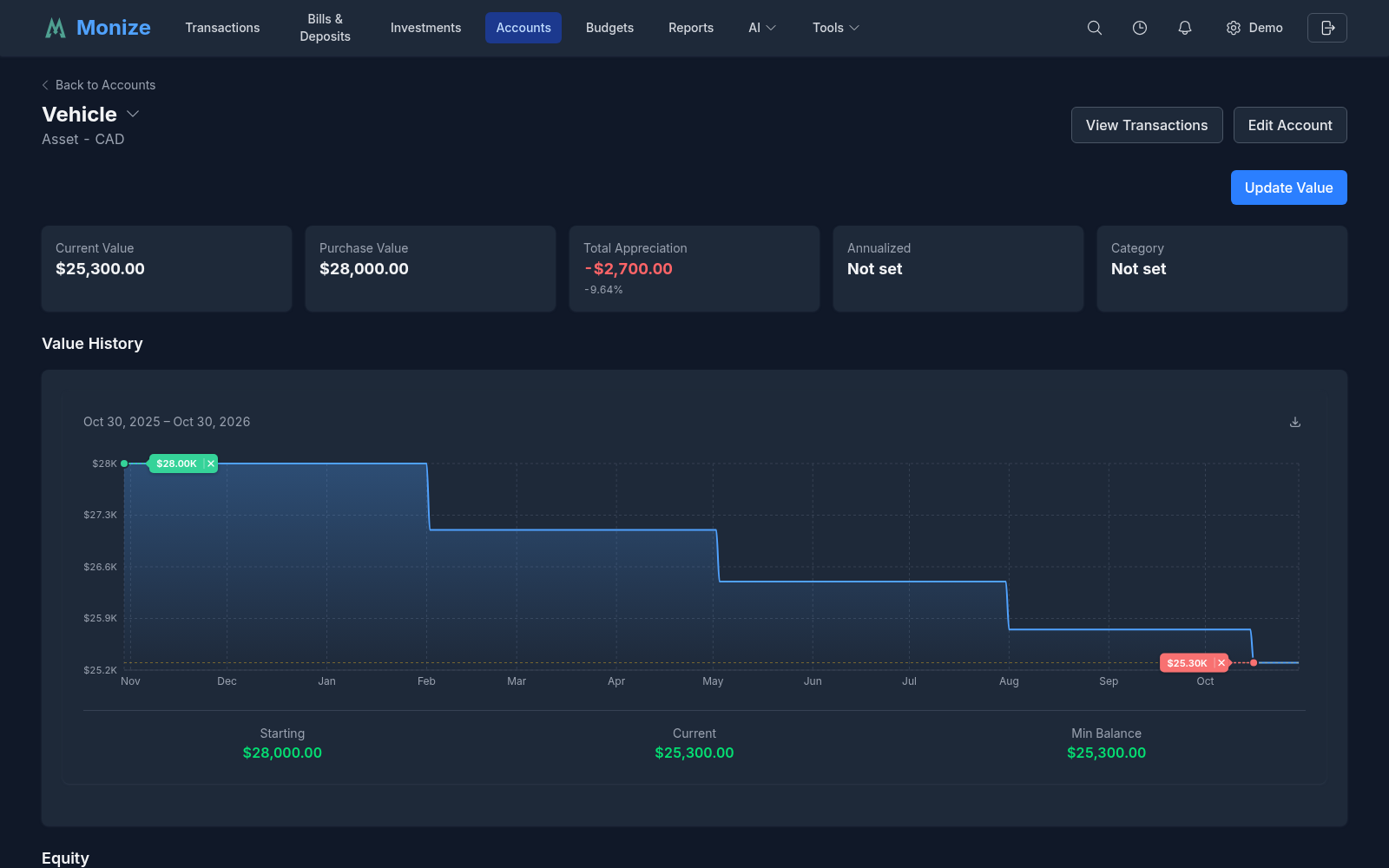
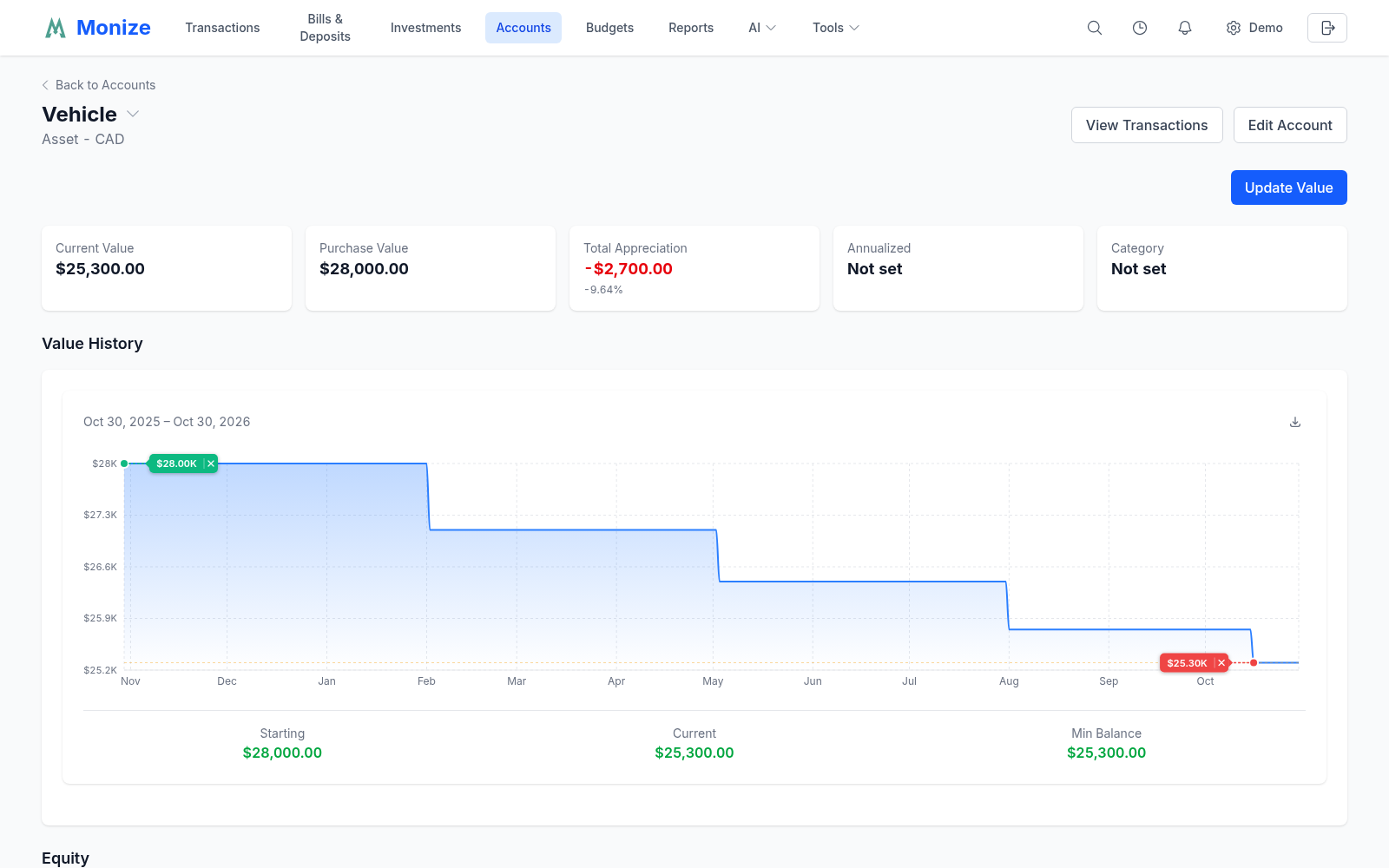
- Assets
- Foreign Currency Fees
- Investments (Brokerage)
- Loan and Mortgage Detail Page
- Summary Cards
- Line of Credit
- Editing and Closing Accounts
- Editing
- Closing Accounts
- Deleting Accounts
- Account Reconciliation
- How to Reconcile
- Transaction Status
- Favourite Accounts
- Investment Account Pairs
- Multi-Currency Accounts
Monize supports a wide variety of account types to represent your complete financial picture. This page covers creating, managing, and organizing your accounts.
Account Types#
Monize supports 10 account types:
| Account Type | Description | Typical Use |
|---|---|---|
| Chequing | Checking or current account | Day-to-day banking |
| Savings | Savings account | Emergency fund, short-term savings |
| Credit Card | Credit card account | Credit card spending and payments |
| Investment | Brokerage account | Stocks, ETFs, mutual funds, bonds |
| Loan | Installment loan | Personal loans, auto loans |
| Line of Credit | Line of credit | Revolving credit facilities |
| Mortgage | Mortgage account | Home mortgage tracking |
| Asset | Asset tracking | Property, vehicles, collectibles |
| Cash | Cash wallet or petty cash | Physical cash tracking |
| Other | Miscellaneous | Any account that does not fit other types |
Account Type Details#
Credit Card accounts include a credit limit and optional statement dates (the payment due day and the settlement day of the billing cycle). The available credit is the credit limit minus the current balance.
Loan and Mortgage accounts are debt accounts with a dedicated payment setup, so Monize can split each payment into principal and interest, show an amortization schedule, and project your payoff. Mortgages add a mortgage type, a rate-fixed term, and an amortization period. See Loan and Mortgage Setup.
Line of Credit accounts are revolving debt accounts with an optional credit limit and interest rate; their detail page shows a revolving-balance view.
Investment accounts are normally created as a linked pair -- a brokerage ledger for your securities and a cash ledger for the money -- shown as one account. See Investment Account Pairs for details.
Asset accounts track the value of physical assets like property or vehicles. Transactions on asset accounts represent changes in value, booked to a value-change category you choose.
Creating an Account#
- Navigate to Accounts from the top navigation bar
- Click + New Account
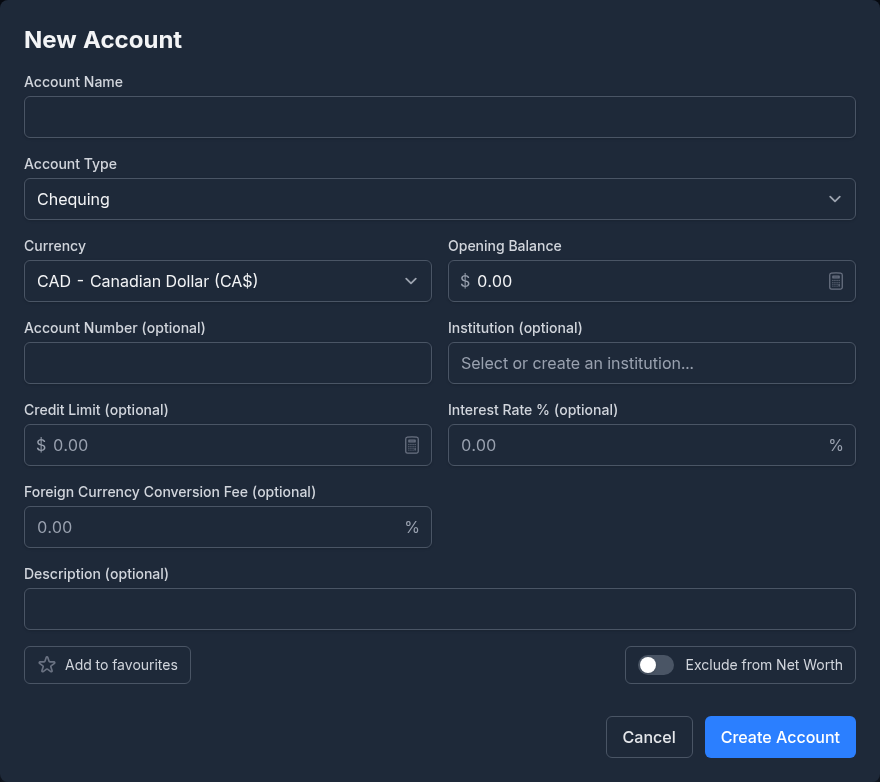
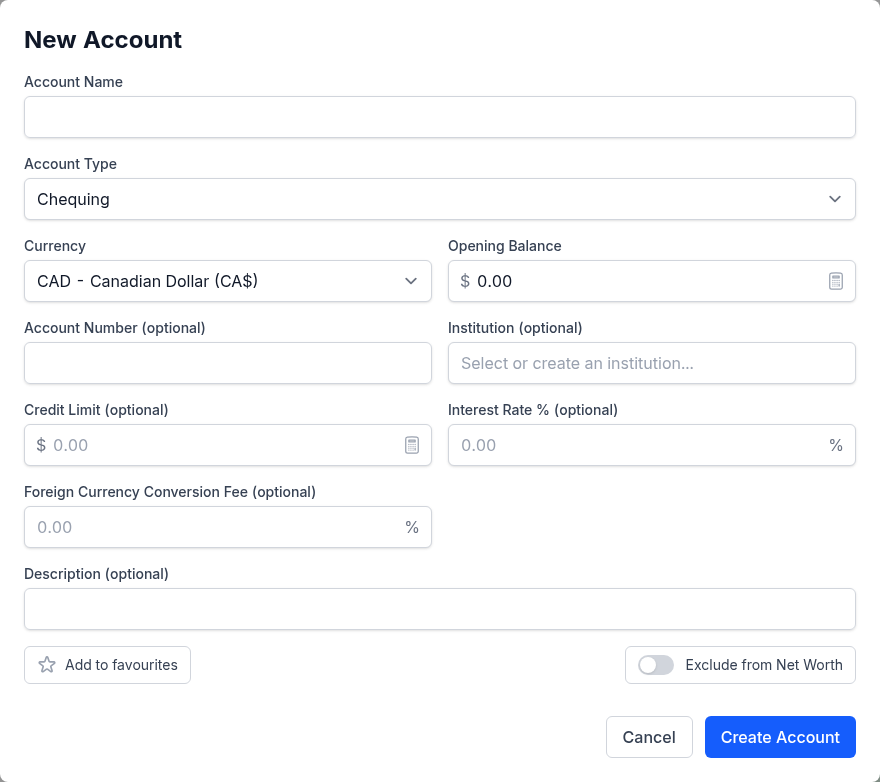
- Fill in the New Account form:
Required Fields#
| Field | Description |
|---|---|
| Account Name | A descriptive name for the account |
| Account Type | Select from the available types |
| Currency | The currency this account operates in. It is locked once the account has transactions |
Optional Fields#
| Field | Description |
|---|---|
| Opening Balance | The starting balance (defaults to 0). For loans and mortgages this is the Loan Amount or Mortgage Amount |
| Account Number | The institution's account number for your reference |
| Institution | The financial institution that holds the account (see Financial Institutions). Required for loans and mortgages, where it is labelled Lender/Institution |
| Credit Limit | For every type except assets, loans, and mortgages |
| Interest Rate % | For every type except assets; required for loans and mortgages |
| Foreign Currency Conversion Fee | The percentage your bank adds to purchases in another currency, so Monize can show what foreign transactions really cost you |
| Statement Dates | Credit cards only: the Due Date and Settlement Date (day of the month) |
| Description | Any additional notes about the account |
| Favourite | Show the account on the Dashboard (the star button) |
| Exclude from Net Worth | Leave the account out of net worth figures and reports |
- Click Create Account
When you edit an existing account, the form also offers Balance alerts: Notify below and Notify above amounts that send you a notification when the balance crosses them. The edit form's Import and Export buttons import a QIF file into the account or export its transactions.
Loan and Mortgage Setup#
Selecting the Loan or Mortgage account type on the account form reveals a dedicated payment setup panel so Monize can track your amortization, split each payment into principal and interest, and project your payoff. Saving it creates the scheduled payment in Bills & Deposits.
Loan Payment Setup#
When you create a Loan, the Loan Payment Details panel asks for:
| Field | Description |
|---|---|
| Payment Amount | The regular payment made against the loan |
| Payment Frequency | Weekly, Every 2 Weeks, Semi-Monthly, Monthly, Quarterly, or Yearly |
| First Payment Date | The date the first scheduled payment is due |
| Payment From Account | The account the payment is drawn from (e.g. your chequing account) |
| Interest Category | The expense category the interest portion of each payment is booked to |
As you fill in the loan amount, interest rate, payment, frequency, and first payment date, a Payment Preview appears showing the principal and interest portions of the first payment, the total number of payments, and the estimated payoff date.
Mortgage Setup#
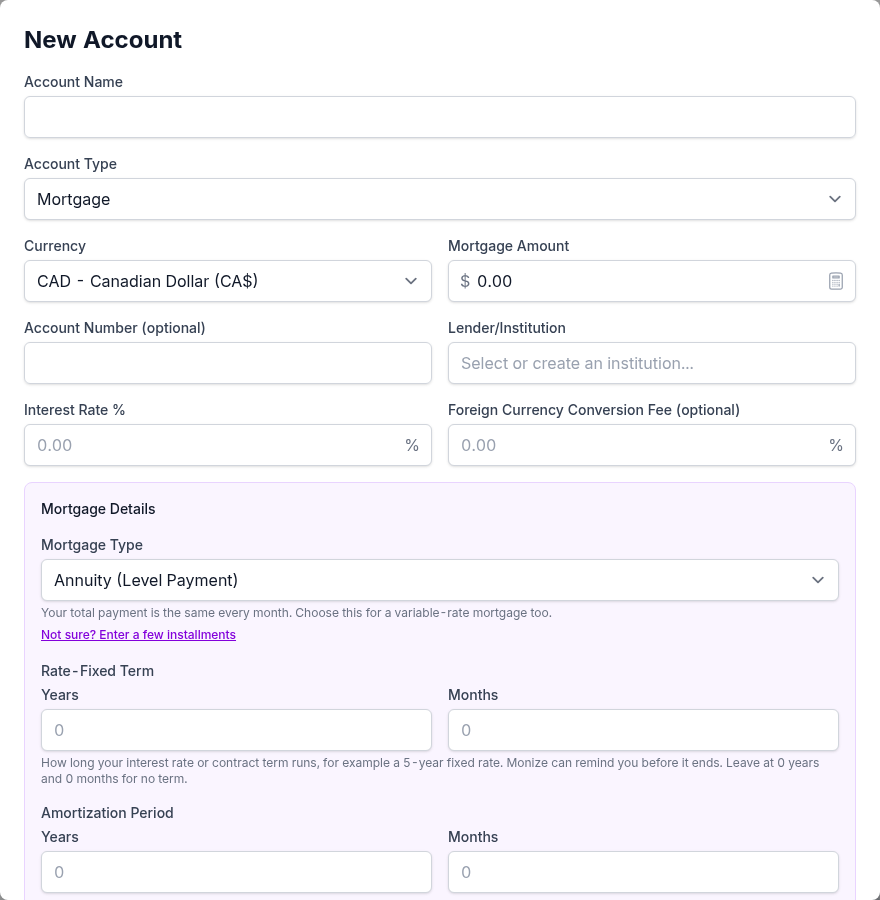
Mortgage accounts offer everything a loan does, plus mortgage-specific settings in the Mortgage Details panel:
| Field | Description |
|---|---|
| Mortgage Type | Annuity (Level Payment) -- the total payment is the same every period, including most variable-rate mortgages; Canadian Fixed Rate -- interest compounds twice a year; Linear (Constant Principal) -- the principal part is the same every period and the total falls; Interest Only -- you pay only interest and the balance is repaid at the end |
| Rate-Fixed Term | How long the interest rate or contract term runs, entered as years plus months; Monize can remind you before it ends |
| Amortization Period | The full amortization, entered as years plus months |
| Payment Frequency | Monthly, Semi-Monthly (15th and month end), Bi-Weekly, Accelerated Bi-Weekly, Weekly, or Accelerated Weekly. The accelerated frequencies are for annuity mortgages only |
| First Payment Date, Payment From Account, Interest Category | Same as for loans |
| What an Extra Repayment Does | Linear mortgages only: whether an extra repayment shortens the term or lowers the installment |
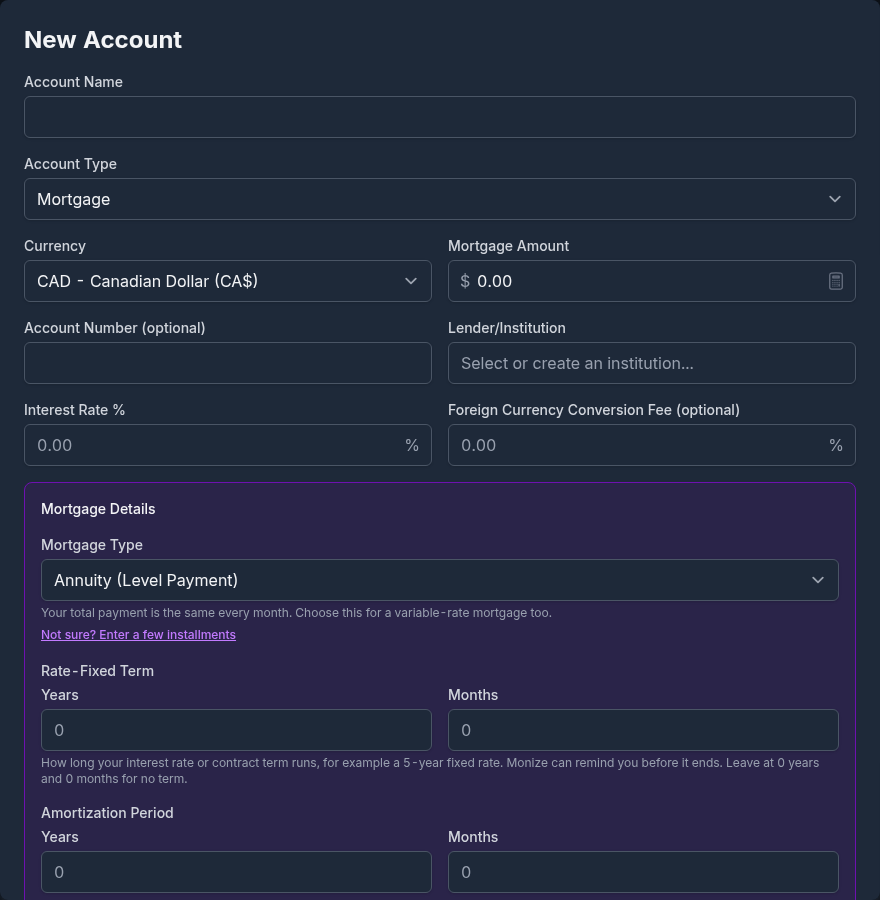
Not sure which type you have? Click Not sure? Enter a few installments, copy two or three consecutive installments from a statement, and click Suggest a Type; Monize explains its suggestion, and Use This Type applies it.
The Amortization Preview shows the calculated payment amount, the effective rate, the first payment's principal and interest split, the total number of payments, total interest, and the estimated payoff date. A linear or interest-only mortgage has no fixed payment, so each installment is worked out on its due date from the balance and the rate.
Mortgage Fees#
A mortgage payment often collects more than principal and interest: mortgage insurance, property tax held by the lender, or an administration fee. Under Mortgage fees, the last section of the mortgage's details (after the interest and overpayment settings), click Add a fee for each one and enter:
| Field | Description |
|---|---|
| Fee name | Shown as the memo of the fee's line, for example Property tax |
| Category | The category the fee is booked to. Each fee needs its own category, and it cannot be the interest category. Type a new name and choose Create to add one, as in any category picker (Parent: Child creates it under a parent) |
| Calculated as | Fixed amount; Percentage of current balance, recalculated at every payment so it falls as the mortgage is paid down; or Percentage of original balance, based on the amount originally borrowed |
| Value applies | Per payment, or Per year, which divides the value over the payments in a year (a yearly property tax of 3,600 paid monthly is 300.00 a payment) |
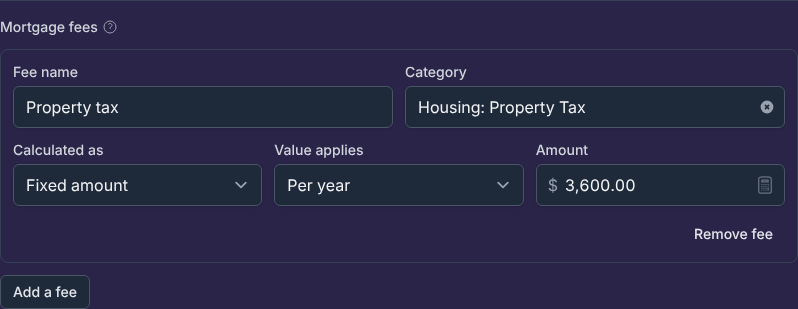
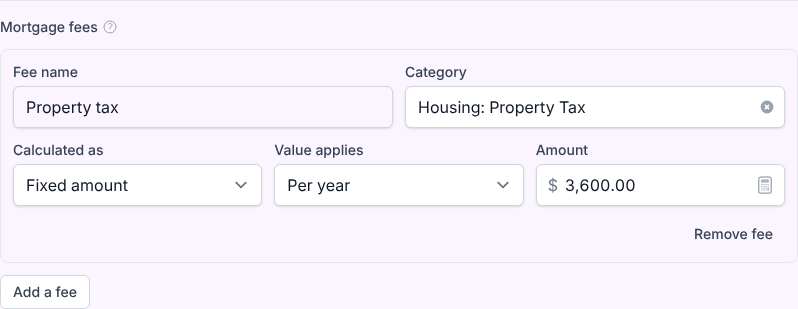
Each fee becomes its own line of the scheduled mortgage payment, and the payment amount is the principal and interest plus every fee. Fees are optional. To change them later, open the mortgage's detail page and use Edit fees in the Mortgage fees panel; saving updates the lines of the next payment. Fees you add before setting up the mortgage's payments are added to the scheduled payment when you set it up. Payment matching cannot yet settle a payment that includes fees, so a mortgage cannot have both fees and a payment matching rule.


Payment Matching#
If your bank posts one undivided debit for each mortgage or loan installment, turn on Match imported bank payments and enter a Payee pattern (with a * wildcard, for example *MY BANK*) and an optional Description pattern. When an imported or synced bank row matches, Monize splits it into principal and interest, books it as the installment, and marks the scheduled payment as paid, instead of you ending up with a duplicate. Turning this on turns off auto-posting on the linked bill, because the bank's own row is what gets matched.
Guided Payment Setup#
If you have already imported transaction history for a loan or mortgage that has no scheduled payment, its edit form offers Set Up Recurring Payments. The Set Up Loan Payments (or Set Up Mortgage Payments) dialog analyses your existing transactions and detects:
- The payment frequency and regular payment amount
- The principal / interest split from your most recent payment
- Any recurring extra principal payments
- An estimated interest rate, interest category, and source account
Each detected value is presented with a confidence indicator for you to review and adjust before clicking Set Up Payments. You can also choose to Automatically post transactions when due.
If you are not sure how to record loan payments in the first place, a collapsible How to record loan payments guide is built into the form: principal is a transfer to the loan account, interest is an expense.
Overpayment Recognition#
So that extra principal payments are scored correctly in the schedule, simulator, and Past Impact analysis, the mortgage form's Overpayment recognition settings tell Monize how you record them. An overpayment is recognized as 100% principal when it matches any one of:
- An Overpayment category
- An Overpayment payee
- Overpayment memo text (a case-insensitive match against the payment's memo)
Any single match is enough -- you do not have to use all three. A loan's detail page offers the same settings under Payment recognition.
Interest Booking Mode#
Banks book interest in different ways, and Monize reads all of them. The Interest Recording setting tells Monize how to find the interest portion of each payment:
| Mode | Use when |
|---|---|
| Automatic (recommended) | Let Monize detect the style (the default) |
| Split leg of the payment | Each payment is a split transaction with a principal line and an interest line |
| Separate expense (principal is a transfer) | Interest is booked as its own standalone expense transaction, apart from the principal transfer |
Interest-only grace periods appear as their own rows in the schedule. Interest is counted by its category across your full history regardless of the loan's configured start date, so a migrated loan's earlier activity is not hidden. If you refinance sequentially, give each refinance its own interest category so the periods stay cleanly separated. See the loan detail page tools for how recognized overpayments and interest flow into the simulator and rate detection.
Financial Institutions#
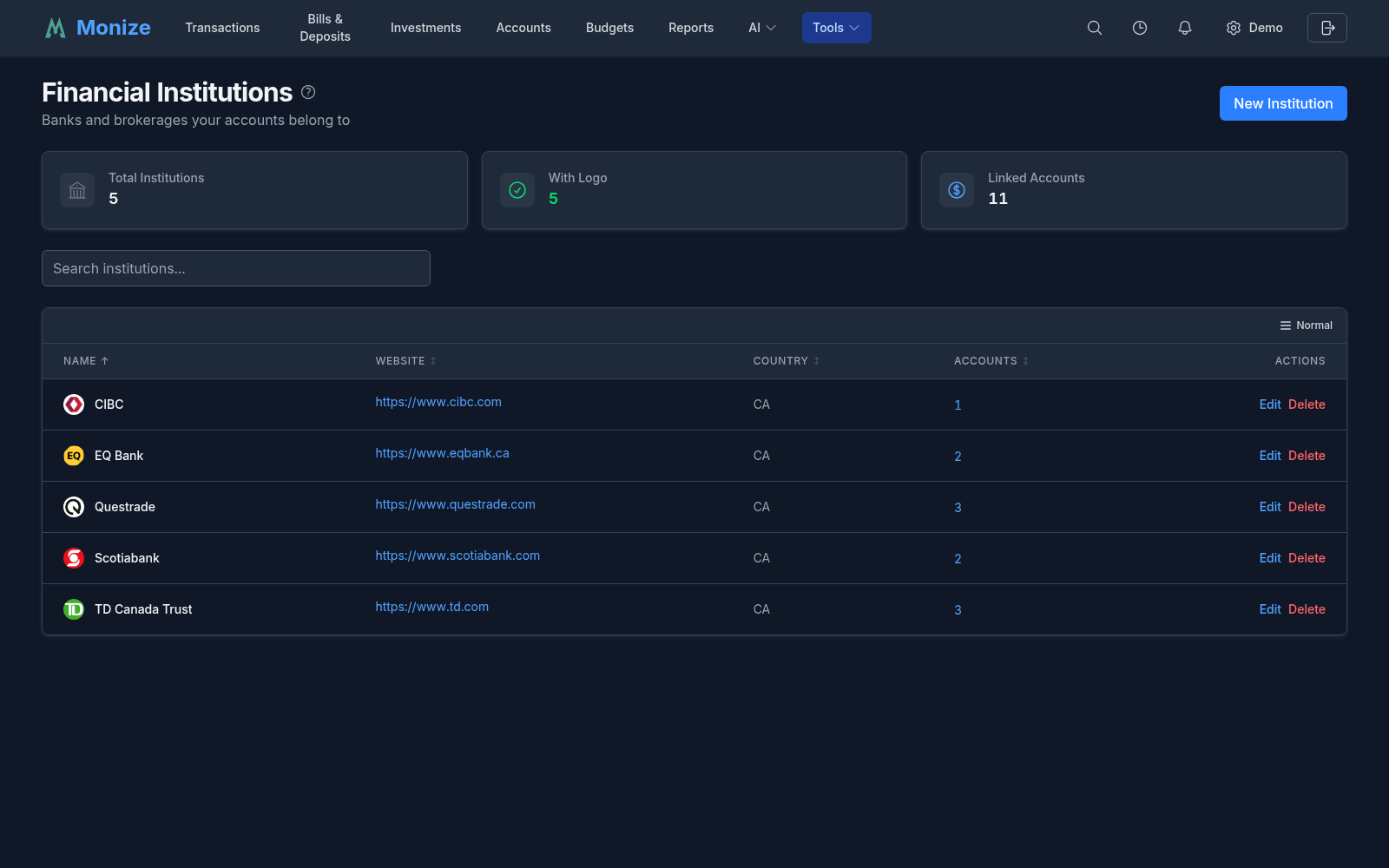
Each account can record the financial institution that holds it -- the bank, brokerage, credit union, or lender behind the account. Institutions are records of their own, kept on Tools -> Institutions, so several accounts can share one and each institution carries its brand logo.
Why Set an Institution#
- Identify accounts at a glance -- The institution's logo and name appear beside the account in the account list and on the dashboard.
- Group related accounts -- The Institutions page counts the accounts at each institution, so you can see your exposure to any one bank or lender.
- Required for debt accounts -- The institution is mandatory for loan and mortgage accounts, since it identifies your lender. For all other account types it is optional.
Setting or Changing an Institution#
- Open the account form when creating a new account, or click Edit on an existing account.
- In the Institution field, select an existing institution, or type a new name to create one.
- Click Create Account or Update Account.
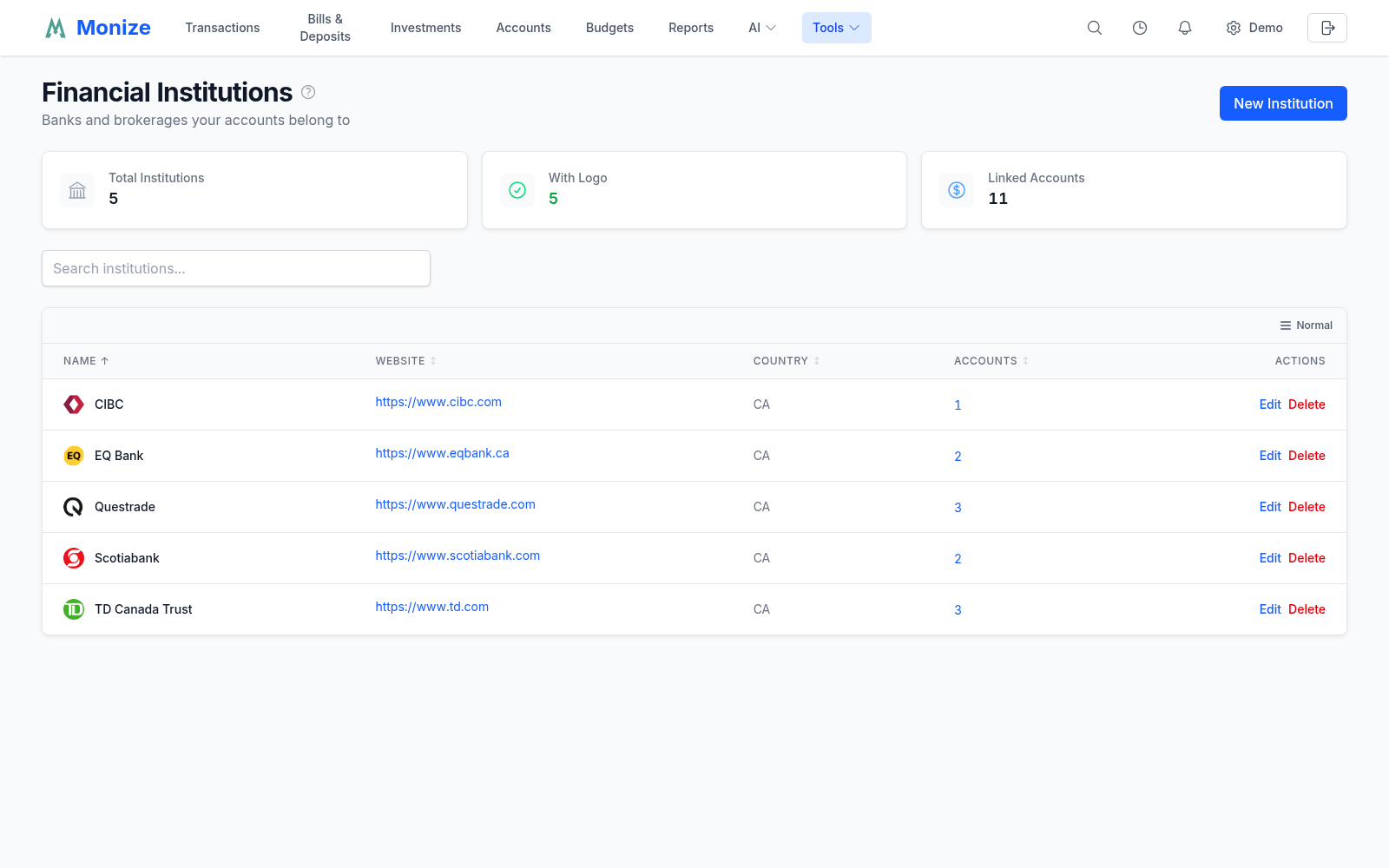
On the Financial Institutions page, New Institution adds one with its Name, Website, and an optional two-letter Country. The logo is fetched automatically from the website. Each institution's Accounts action lists the accounts assigned to it, where you can add or remove accounts. Deleting an institution unassigns its accounts without deleting them.
Account List#
The Accounts page lists all your accounts grouped by type, each group with its own subtotal.
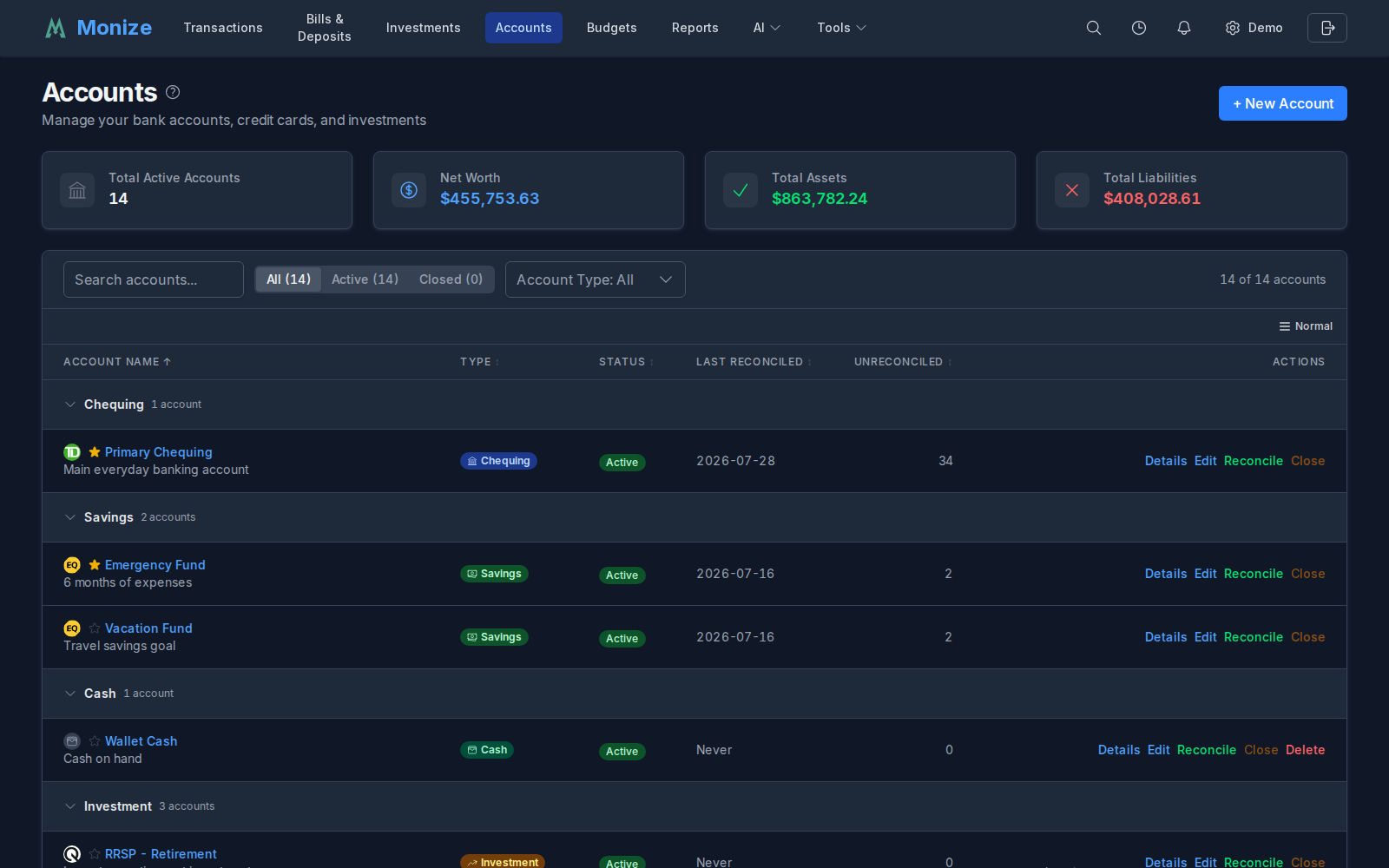
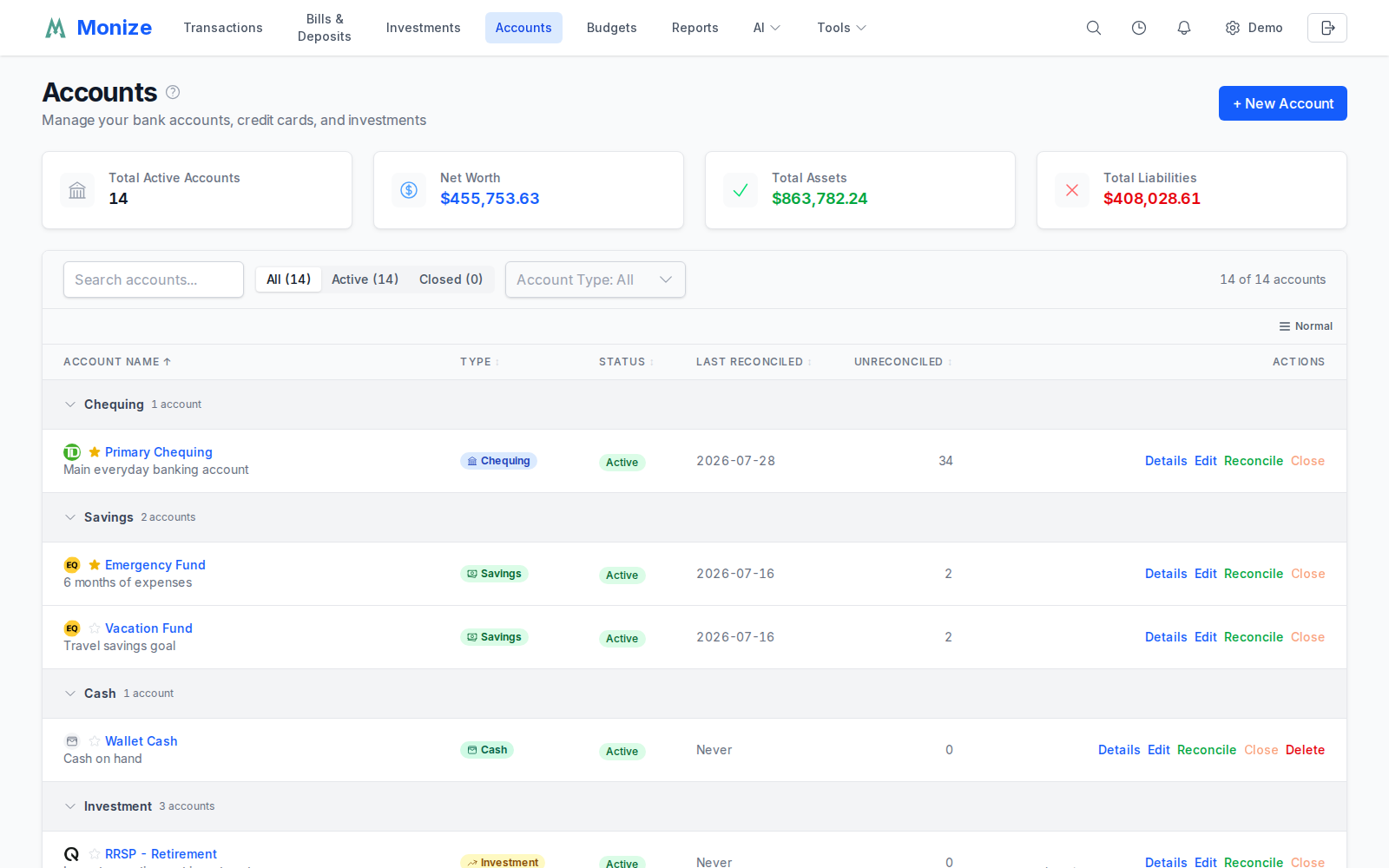
The table has these columns:
- Account Name -- with the institution's logo, the favourite star, and the account's description
- Type
- Status -- Active or Closed
- Last Reconciled -- the date of the account's last reconciliation, or Never
- Unreconciled -- how many of the account's transactions are not yet reconciled (unreconciled or cleared, whatever their date): the transactions the Reconcile screen lists. It refreshes when you return to the page, so a reconcile done in another tab or on another device shows here too
- Balance -- in the account's currency; an investment account shows its combined value with the investments and the cash each on its own line beneath it (at Normal density)
- Actions -- Details, Edit, Reconcile, Close (or Reopen), and Delete
The Balance always stays in view. On a narrower window the columns to its left make room for it: long account names are shortened, and Last Reconciled and Unreconciled are left out first, then Status, then Type.
Click an account to open its transactions. Investment accounts open their detail page, and so does every account if you choose Show its dashboard under Default Account View in Settings -> Preferences. Details always opens the detail page.
Close is only available when the account's balance is zero, and Delete only for accounts with no transactions (see Deleting Accounts).
Summary Card#
At the top of the accounts page, the summary shows:
- Total Active Accounts
- Net Worth -- assets minus liabilities
- Total Assets -- the accounts with a positive balance, plus investment market values
- Total Liabilities -- the money you owe
The three money figures leave out accounts you excluded from net worth.
Filtering#
The filter bar above the list lets you narrow down which accounts are shown:
- Search -- A text box that filters accounts by name as you type. Click the X inside the box to clear the search.
- Status -- Switch between All, Active, and Closed accounts.
- Account Type -- Show only selected account types (e.g. only chequing and savings). It lists just the types you actually have; leaving it empty shows all types.
- Net Worth -- Show the accounts included in or excluded from net worth (shown when you have excluded an account).
- Shared with me -- Show only the joint accounts other people share with you (shown when you have any).
A counter beside the filters shows how many accounts match, in the form "X of Y accounts". When the filters match nothing, a Clear Filters action resets them all at once.
Account Detail Pages#
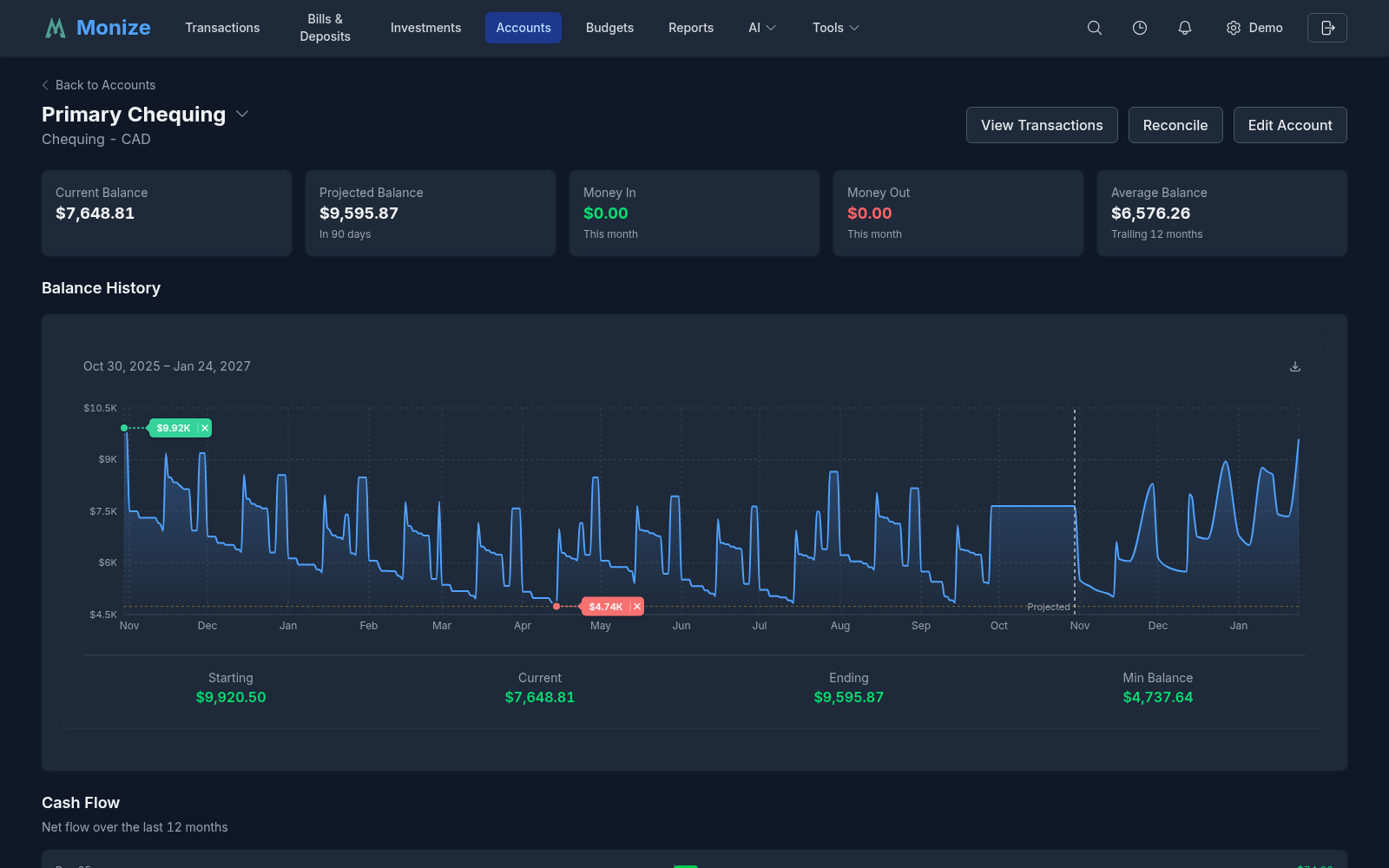
An account's detail page is tailored to its type, rather than a plain transaction list. The header has View Transactions (the account's register) and Edit Account, plus Reconcile on banking accounts and credit cards (an investment account has its own buttons, below), and a caret beside the account name that switches to another account, with your favourites first.
Banking (Chequing / Savings / Cash)#
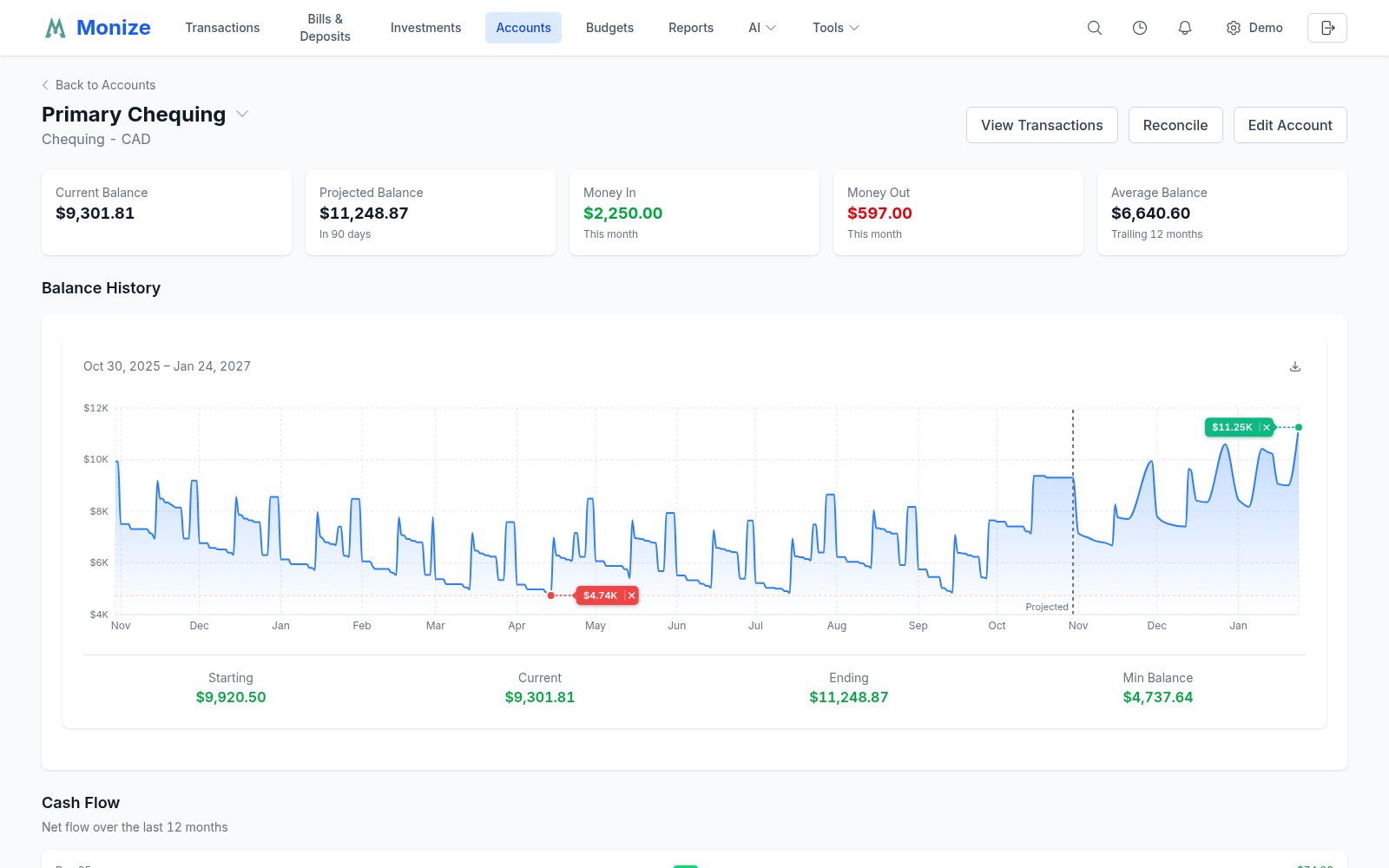
- Summary cards: Current Balance, Projected Balance in 90 days, Money In and Money Out this month, and the Average Balance over the trailing 12 months; with an interest rate set, also the Interest Rate and the Interest Earned this year
- Balance History chart, with a 90-day balance forecast projected from your scheduled bills and deposits
- A Cash Flow chart of the net flow over the last 12 months
- Top Categories and Top Payees this month
- Recurring Charges: the scheduled bills on the account, plus Possible recurring charges found in its transactions, each with a Create bill button that turns it into a scheduled bill
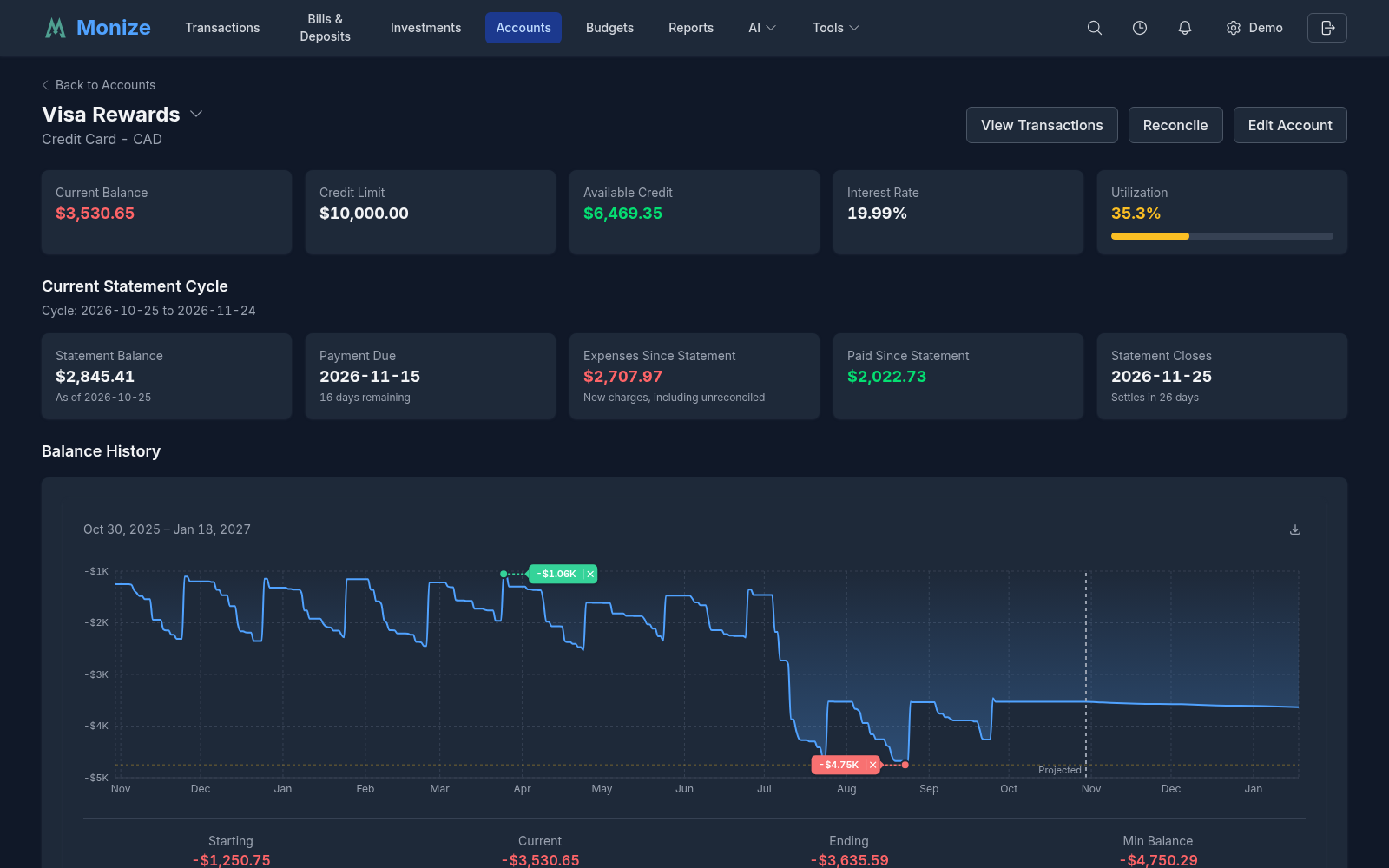
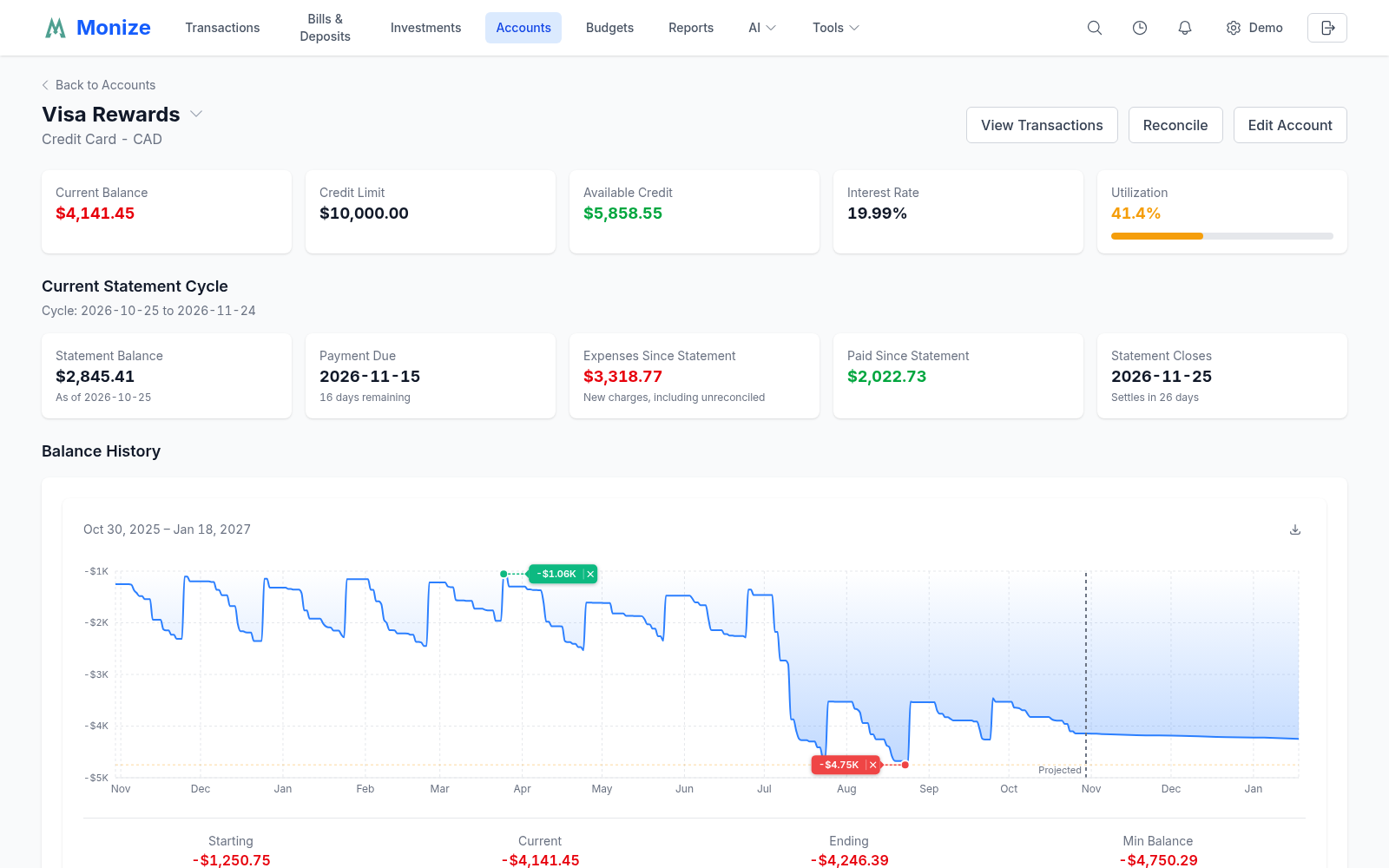
Credit Cards#
- Summary cards: Current Balance, Credit Limit, Available Credit, Utilization, and Interest Rate
- Current Statement Cycle: the statement balance, expenses and payments since the statement, the payment due date, and when the statement closes (needs the card's statement dates)
- Balance History
- Spending This Cycle by category, including late-posting, unreconciled charges carried over from the previous cycle, so the amount owed is right
- Interest & Fees charged this year
- A Payoff Calculator that estimates how long the balance takes to clear at a fixed monthly payment
- Make a Payment, which records a payment (the statement balance, the full balance, or a custom amount) from a chequing, savings, or cash account now, or schedules it monthly
Assets#
- Current Value, Purchase Value, Total Appreciation, and the Annualized rate
- A Value History chart
- Update Value, to record a new valuation as of a date
- An Equity panel when the asset is linked to its financing loan (for example, a house linked to its mortgage), showing value minus outstanding debt and equity over time. Use Link Loan to link one
Foreign Currency Fees#
Accounts with transactions in another currency gain a Foreign Currency Transaction Fees section: the fees paid per currency, charted over time, and a list of the foreign-currency transactions. Both export to CSV, and the chart to PNG.
Investments (Brokerage)#
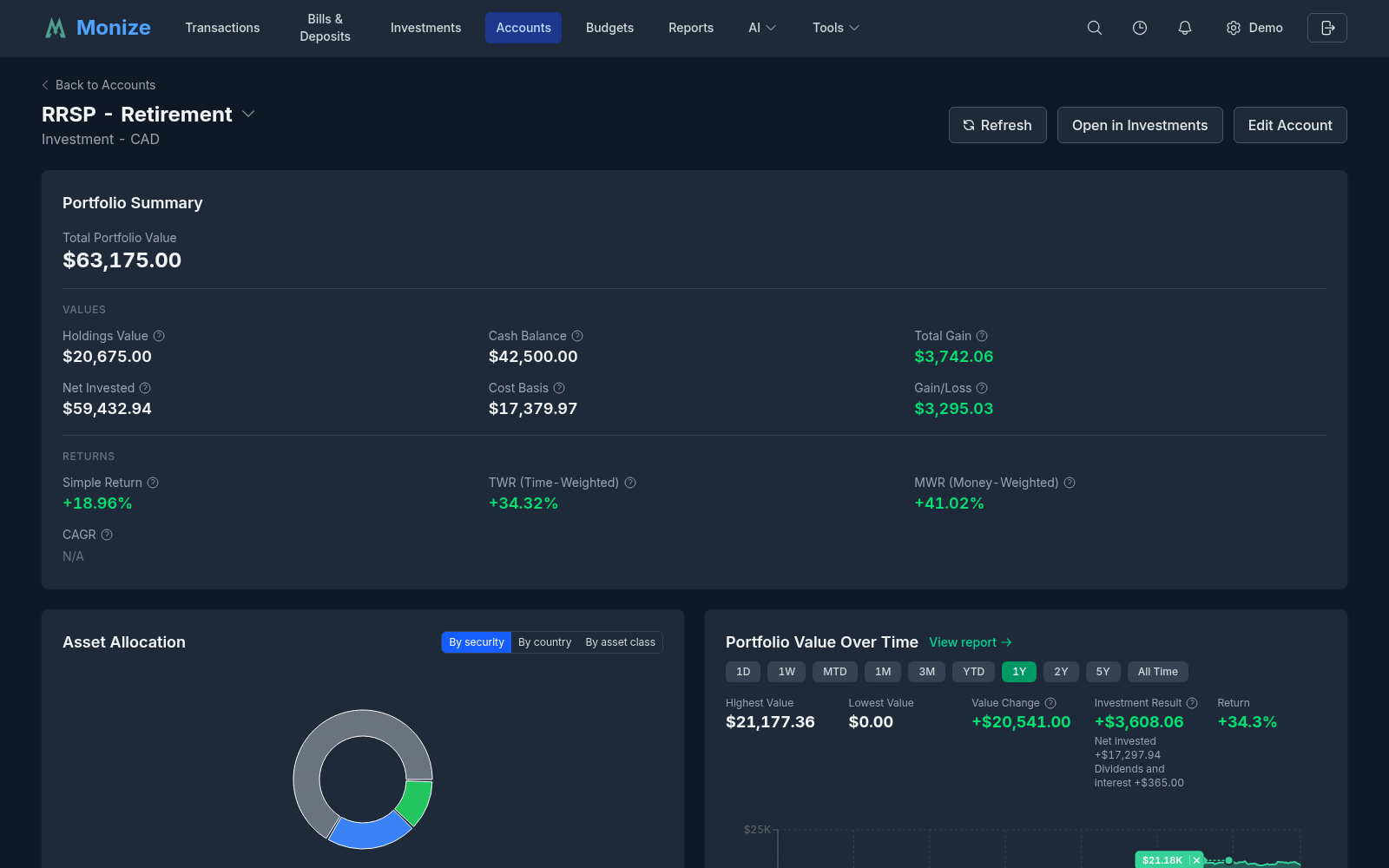
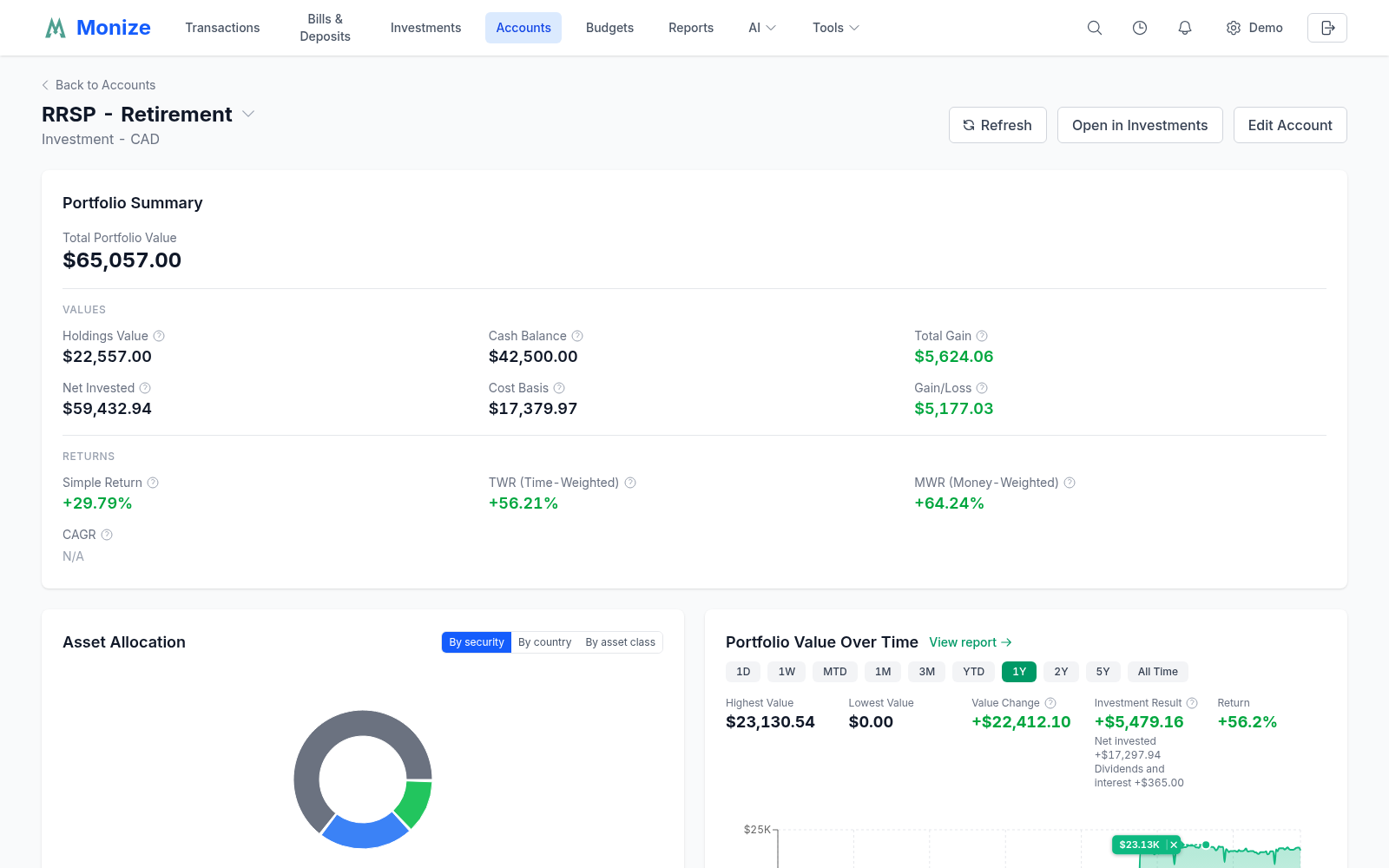
An investment account's detail page is the Investments view for that one account: its Portfolio Summary, Asset Allocation, Portfolio Value Over Time, holdings, its Investment Income this year (dividends and interest, and realized gains), and the brokerage and cash registers of the pair behind a toggle. The header has Refresh to fetch the latest prices, Open in Investments, and Edit Account.
Loan and Mortgage Detail Page#
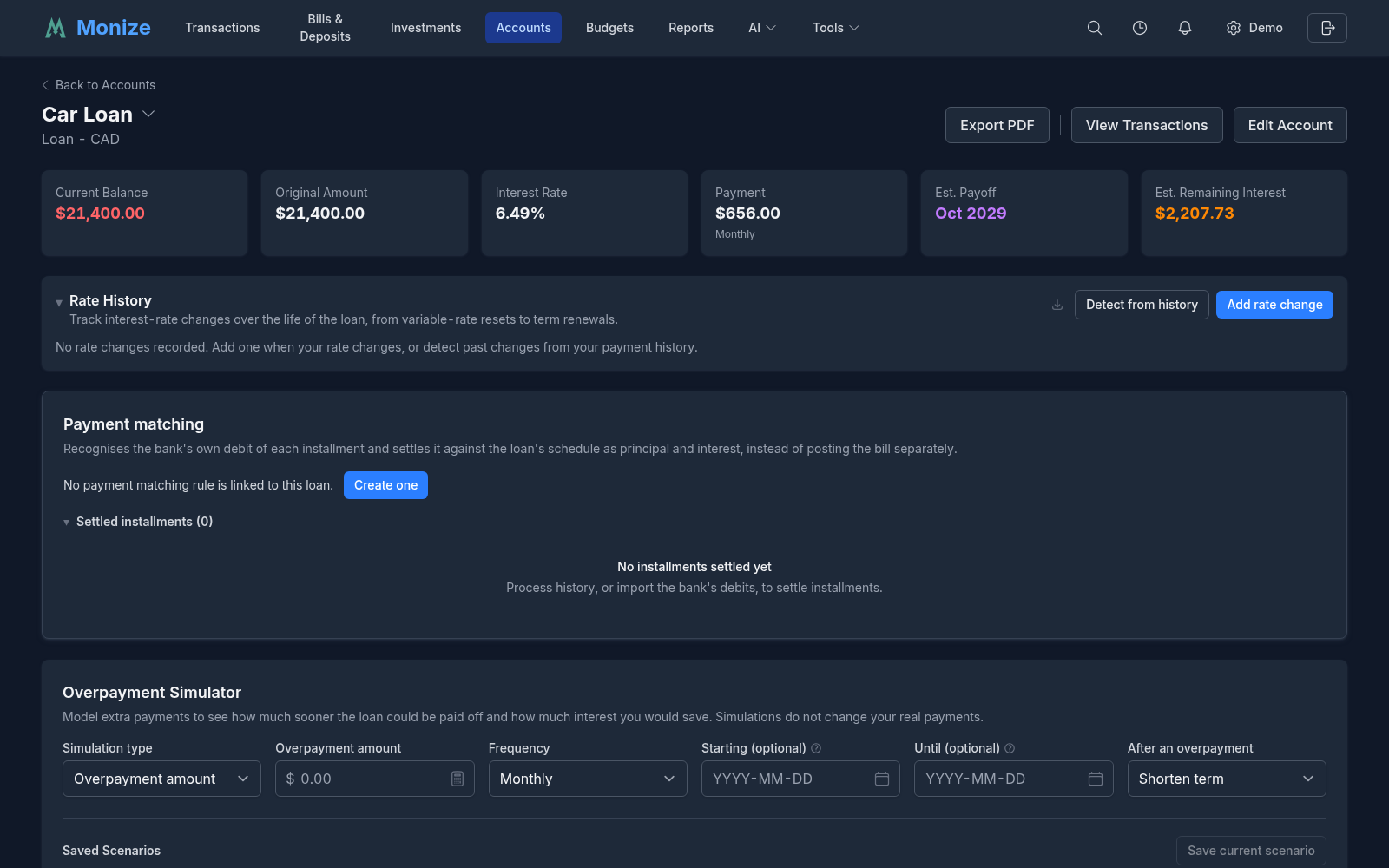
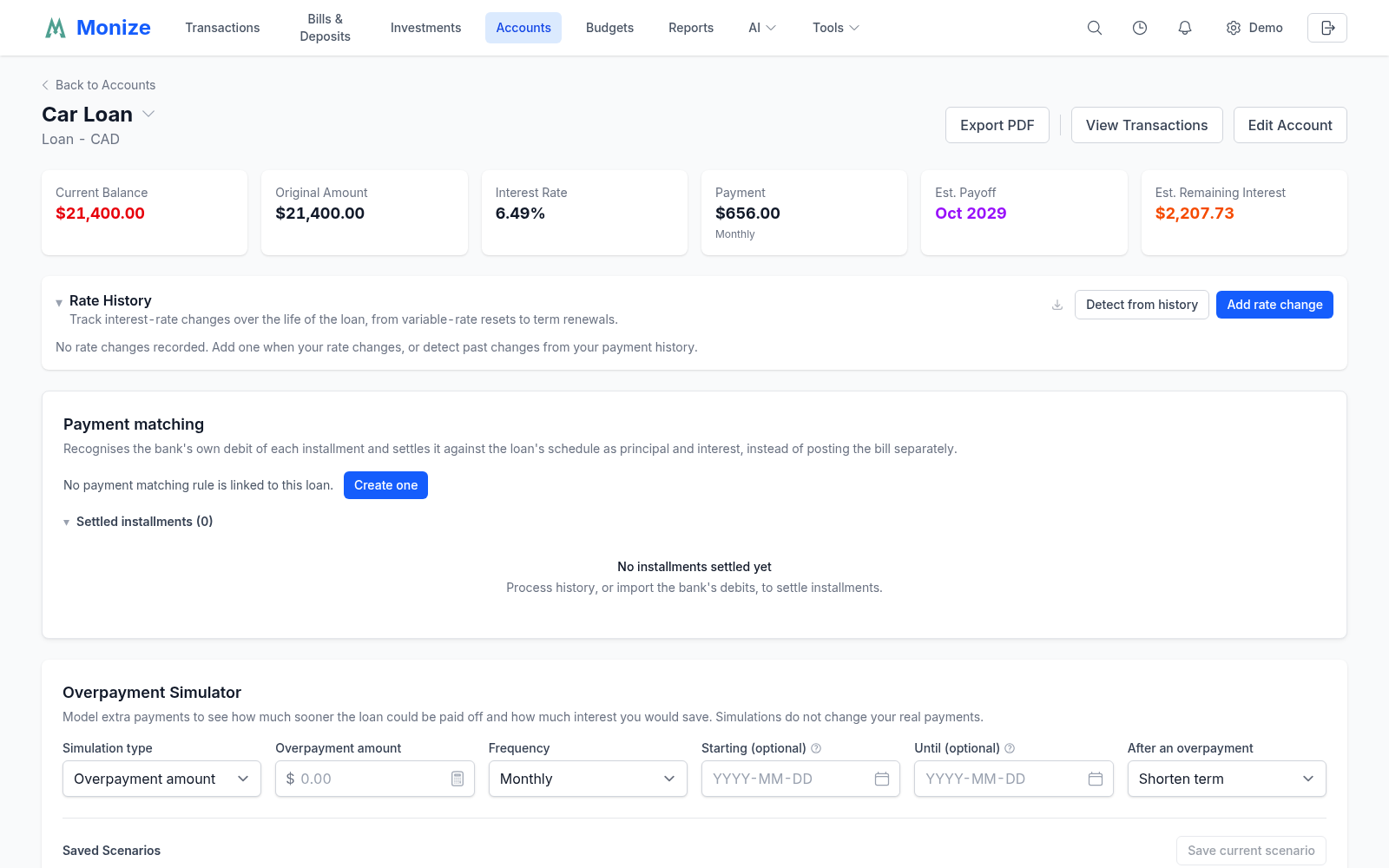
Loan, mortgage, and line-of-credit accounts have a detail page with their payment schedule and payoff tools. Open it with the Details row action, or from the account panel beside its register.
Summary Cards#
For loans and mortgages, the top of the page shows a row of summary cards:
| Card | Meaning |
|---|---|
| Current Balance | The amount still owed |
| Original Amount | The opening balance (or the amount derived from history) |
| Interest Rate | The annual rate; Canadian fixed-rate mortgages also show the effective rate |
| Payment | The regular payment amount and its frequency (for a linear mortgage, the Next Installment and its due date) |
| Est. Payoff | When the loan is projected to be fully repaid |
| Est. Remaining Interest | The interest still to be paid over the remaining schedule |
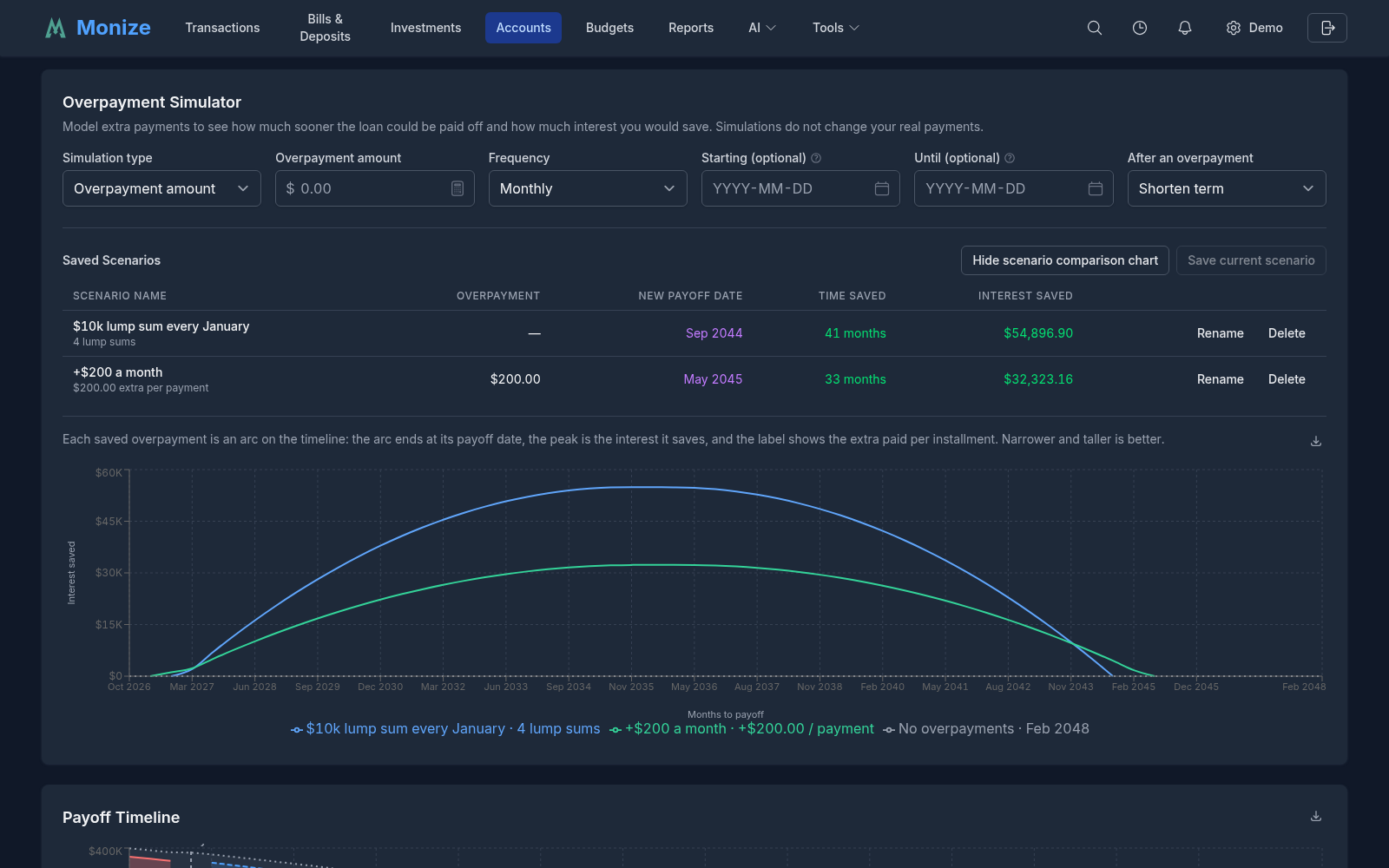
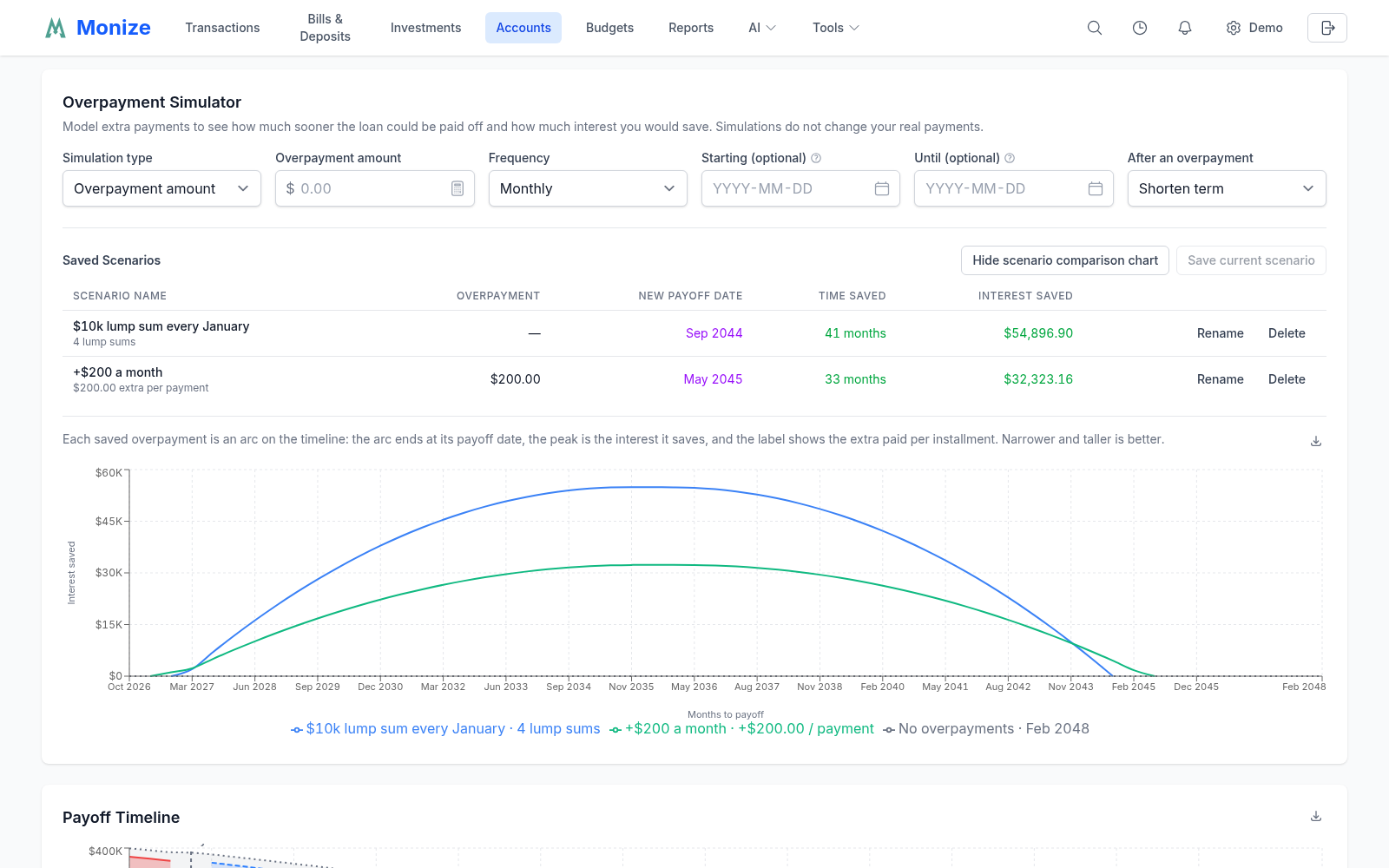
Below the cards, the page includes a month-grouped Loan Schedule with real per-row interest, a Payoff Timeline chart, an interactive Overpayment Simulator with Saved Scenarios and a scenario comparison chart, an Impact of Overpayments Made (Past Impact) analysis, and an editable Rate History timeline with Detect Mortgage Type. A Payment matching panel shows the payment matching rule linked to the loan (or offers Create one), lists the installments it settled, and offers Process history to run the rule over what you already imported. On a mortgage, a Mortgage fees panel lists the fees its payment collects and offers Edit fees. Export PDF saves the whole page as a PDF. The schedule, rate history, and scenario comparison export to CSV, and the payoff comparison chart exports to PNG. See Loan Detail Page Tools for the full breakdown of each tool.
Line of Credit#
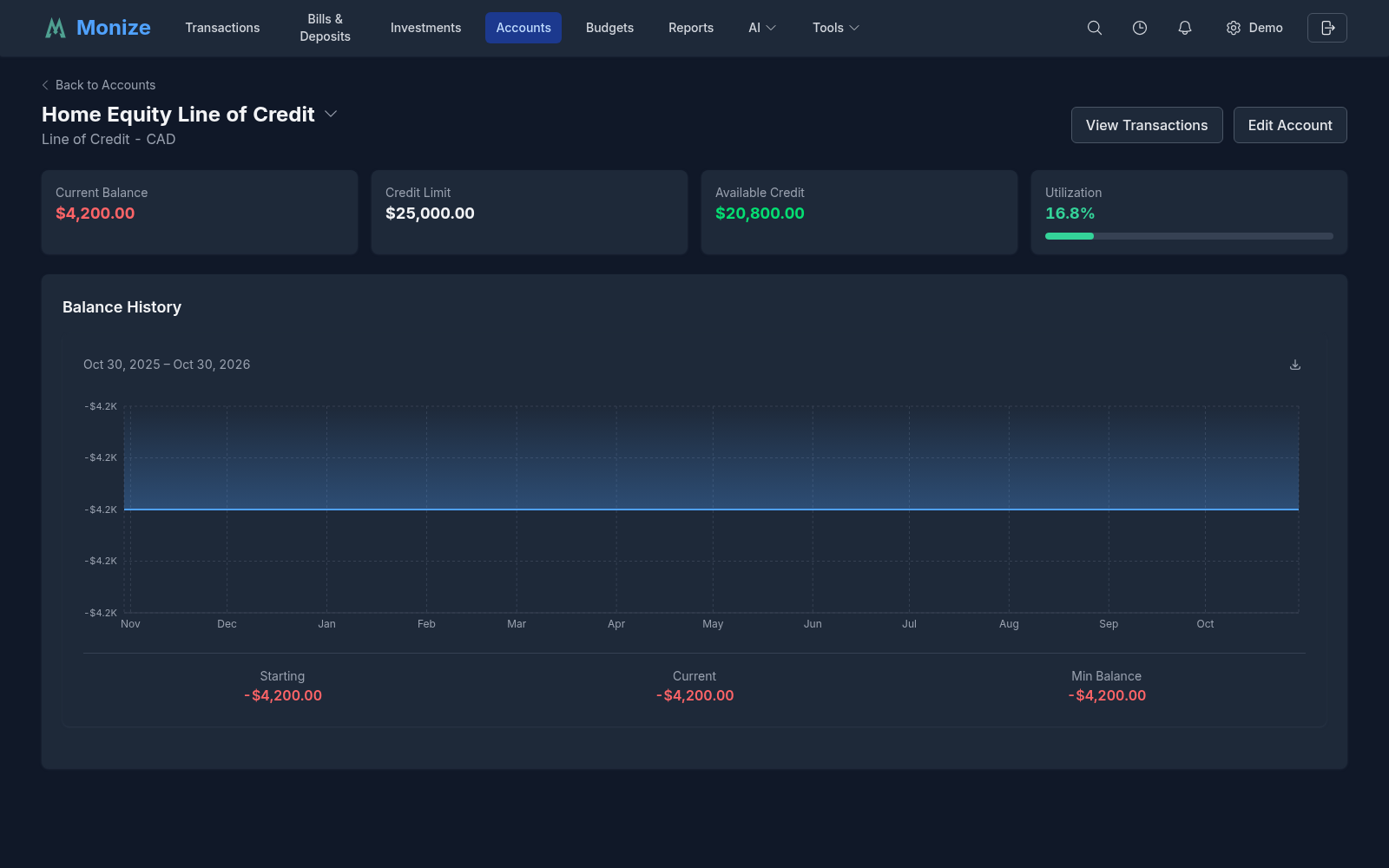
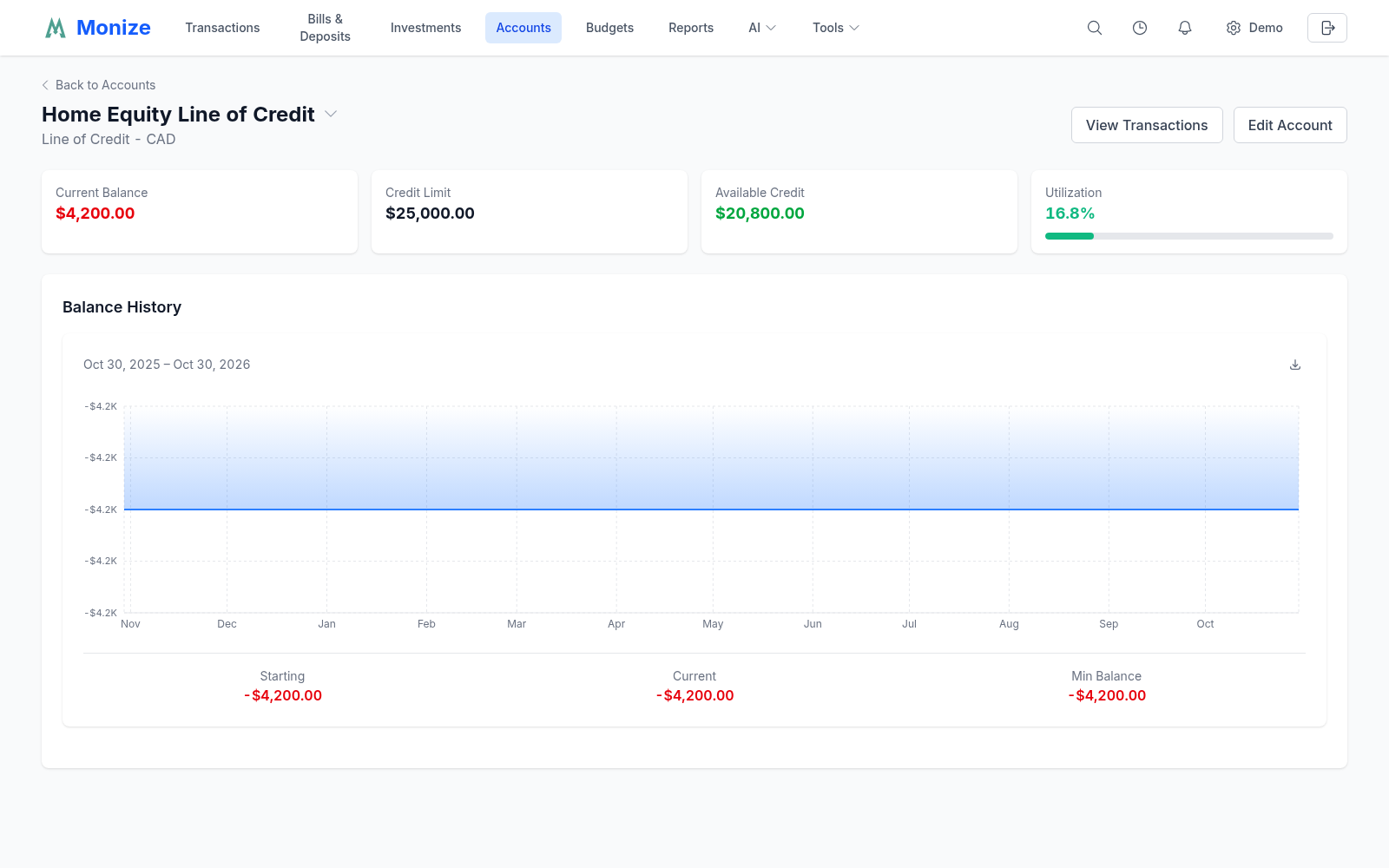
Because a line of credit revolves rather than amortizing to a fixed payoff, its detail page shows a revolving-balance view instead of an amortization schedule:
- Current Balance -- The amount currently drawn
- Credit Limit and Available Credit -- Shown when a credit limit is set
- Utilization % -- The portion of the limit in use, colour-coded to flag high utilization
- Peak Balance -- The highest balance reached (shown when no limit is set)
- Balance History -- A chart of the balance over time, counting both draws and repayments
Editing and Closing Accounts#
Editing#
Click Edit on any account in the list, or Edit Account on its detail page, to open the Edit Account form. All fields from account creation can be updated, except the currency once the account has transactions. For loans and mortgages, changing the Payment From Account moves the upcoming scheduled payments and the payment-matching rule to the new account.
Closing Accounts#
When an account is no longer active (e.g., you closed a bank account), you can close it in Monize:
- Make sure its balance is zero
- Click Close on the account in the list
- Confirm in the Close Account dialog
Closed accounts are hidden from transaction dropdowns and appear under the Closed filter, but their historical data is preserved for reporting. Click Reopen to make an account active again. Closing or reopening an investment account acts on both of its ledgers.
Deleting Accounts#
Accounts can only be deleted if they have no transactions. If an account has transactions, you must either delete the transactions first or close the account instead. Deleting an investment account deletes both of its ledgers.
Account Reconciliation#
Reconciliation helps you verify that your Monize records match your bank statement.
How to Reconcile#
- Click Reconcile on the account in the list (or on its detail page)
- In Start Reconciliation, enter the Statement Date and Statement Ending Balance from your bank, then click Start Reconciliation
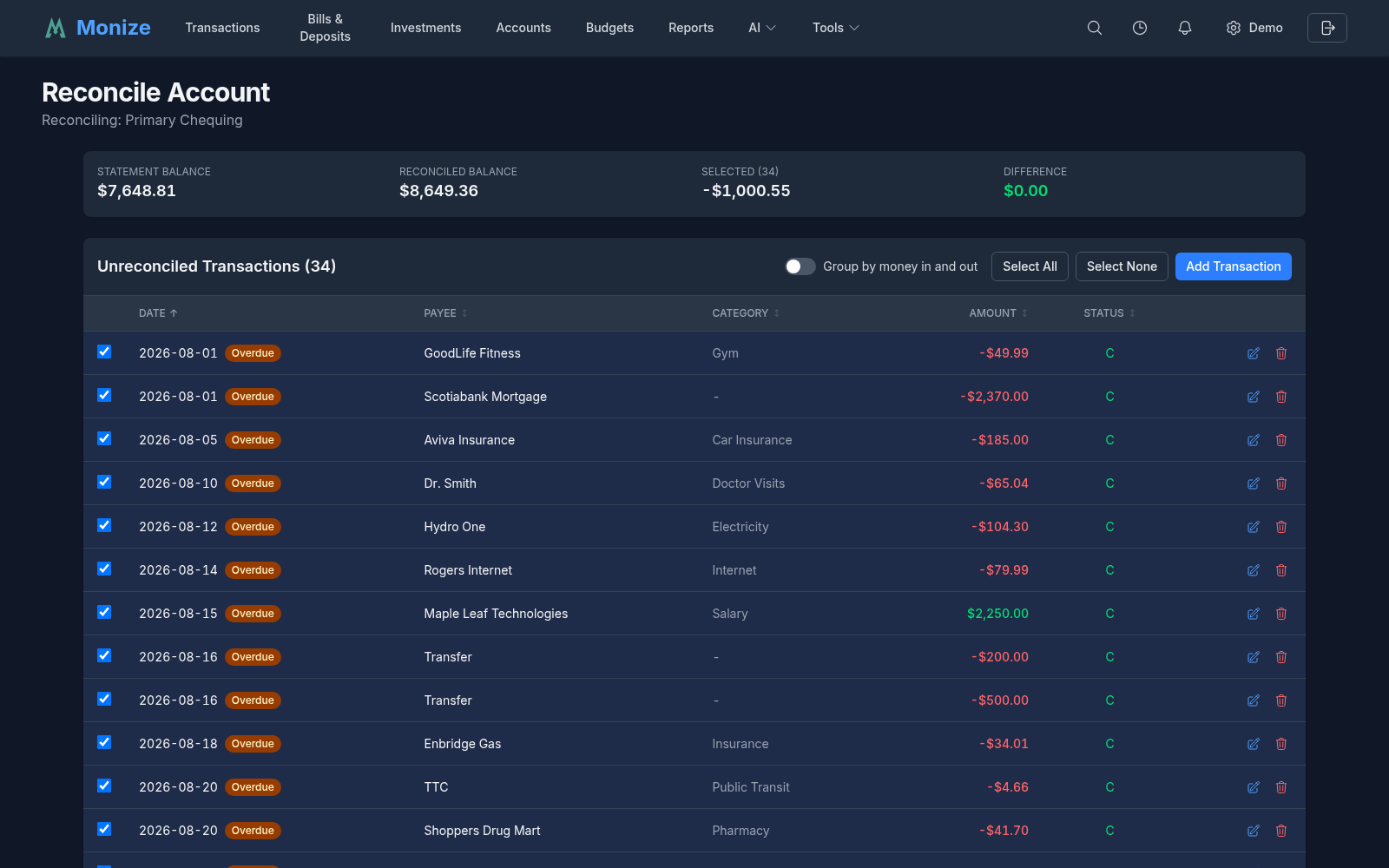
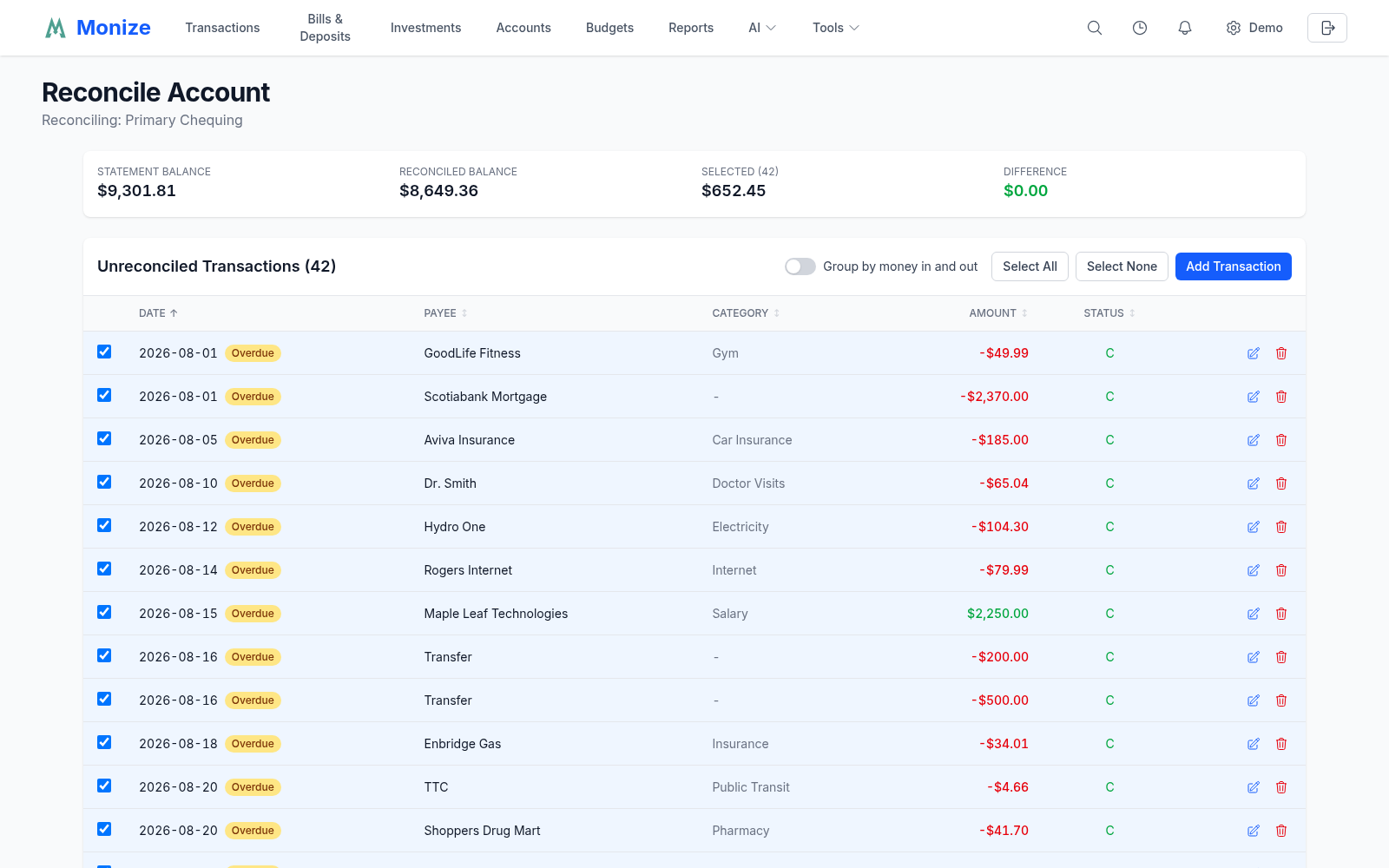
- The Unreconciled Transactions up to the statement date are listed. Tick each one that appears on your statement (Select All and Select None help); transactions already cleared start ticked
- Watch the summary: Statement Balance, Reconciled Balance, the Selected total, and the Difference
- When the difference is zero, click Finish Reconciliation. The ticked transactions become Reconciled
While reconciling you can sort by any column, Group by money in and out with a subtotal for each, edit or delete a row, and Add Transaction for one that is missing. Rows flagged Missed are dated on or before a statement you already reconciled; rows flagged Overdue have waited longer than a statement cycle.
When you finish reconciling a credit card or line of credit, Monize offers to update the next instance of its scheduled payment to the reconciled balance (Update Next Payment), or to create one (Create Scheduled Payment).
Accounts with transactions waiting too long to be reconciled show a reconciliation badge in the header, linking straight to that account's reconciliation.
Transaction Status#
| Status | Meaning |
|---|---|
| Unreconciled | New transaction, not yet on a statement |
| Cleared | Matches a bank statement entry |
| Reconciled | Confirmed by a completed reconciliation |
| Void | Cancelled transaction; it no longer moves the balance |
Favourite Accounts#
Mark accounts as favourites to have them displayed on the Dashboard:
- In the account list, click the star icon next to an account (or turn on Favourite in the account form)
- The account will appear in the Favourite Accounts widget on the Dashboard, and as a quick filter on the Transactions page
Investment Account Pairs#
When you create an Investment account with Create as Cash + Brokerage pair (recommended) turned on, Monize creates two linked ledgers:
- Brokerage -- Holds your securities (stocks, ETFs, mutual funds, bonds, etc.)
- Cash -- Tracks the cash balance within the brokerage, and is where transfers in and out land
The pair appears as one account in the account list, pickers, reports, and on the dashboard, under the name you gave it, with its combined value and the investments and cash shown beneath. When you buy securities, the cash balance decreases. When you sell or receive dividends, the cash balance increases. Reconciling an investment account reconciles its cash ledger. The edit form reaches the cash ledger's opening balance, account number, and description in its Cash account section.
Clicking an investment account in the list opens its detail page; its View Transactions opens the Investments page filtered to that account.
Multi-Currency Accounts#
Each account has a designated currency. If you have accounts in different currencies:
- Transactions in that account are recorded in the account's currency (a transaction can be entered in another currency and converted; see Transactions)
- The Dashboard and reports convert balances to your home currency using the latest exchange rates
- Cross-currency transfers record both amounts and the effective exchange rate
For more details, see Currency Management.